Notifications and Your Personal Calendar in helloswap: A Guide for Employees
How to choose which helloswap alerts you get, where published shifts and the helloswap announcement banner fit in, and how to see your shifts in your own phone or desktop calendar.
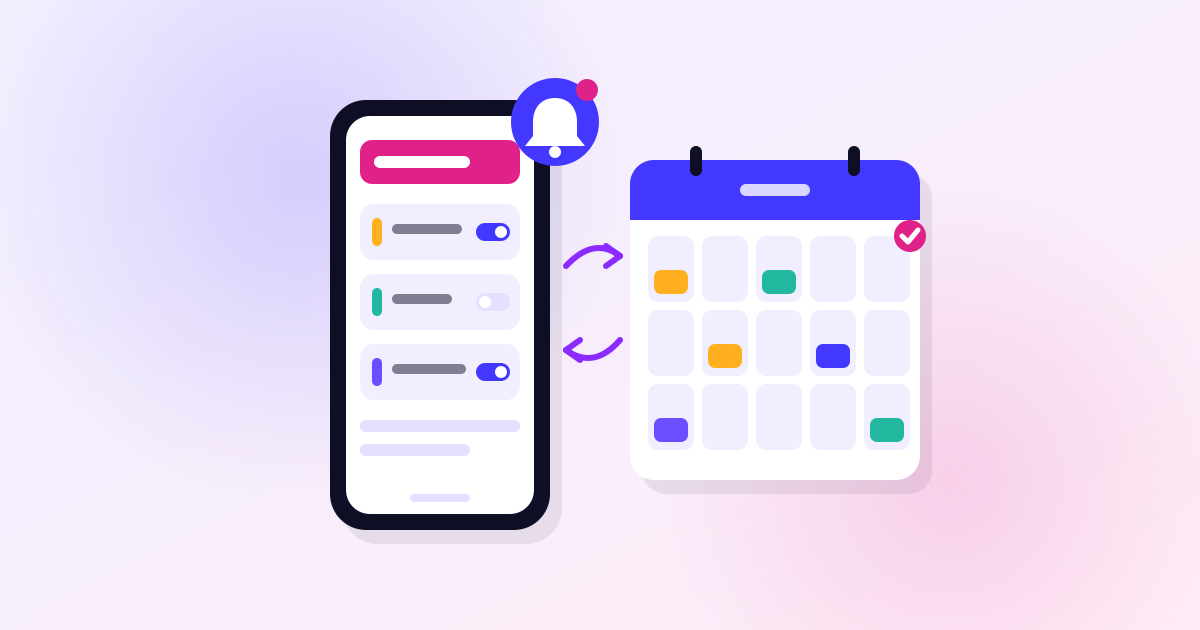
helloswap sends you a notification whenever a shift is published, a swap is offered to you or decided, a colleague puts a shift you could take on the swap board, a leave request is decided, or your shift is coming up. You control most of these yourself from "My notifications" on your profile, and on the Growth plan and above you can also subscribe your published shifts to your own calendar app. Here's what you can actually change, and what's worth doing with it.
Choosing What You Get Notified About
Under "My notifications" on your profile, you can turn each notification type on or off individually, just for your own account, and decide separately whether each one also reaches you by email and as a push notification in the phone app. A few things to keep in mind:
- Your company can switch a notification off for everyone — that overrides whatever you've chosen for it, so if you're not seeing something you expect, it may be disabled at the company level rather than in your own settings.
- Whatever you leave switched on is always listed under the bell in helloswap, so you've got a running record even if you miss the push alert or the email.
- Two things can't be turned off: a swap someone has specifically asked you to answer, and confirmations of your own requests (time off, swaps you've proposed, and so on). That's deliberate — they need a response from you or confirm something you did, so they're not optional noise.
The shift reminder is worth setting deliberately rather than leaving on the default. It arrives either the evening before your shift or a set number of hours beforehand, whichever your company has chosen — so if you're someone who needs a same-day nudge rather than a night-before heads-up (or the other way round), it's worth checking which one applies to you.
A practical habit: if you swap shifts often or pick up open shifts regularly, keep both the swap-decided and open-shift notifications on with push enabled. These are time-sensitive — an open shift on the board can get taken by someone else quickly, and a swap decision affects whether you're actually working that day.
The Banner at the Top of the Page
The message that sometimes appears at the top of helloswap isn't from your employer — it's from helloswap itself, covering things like product information, planned maintenance, or an offer. It can also show up as a notification under the bell. If you close it with the cross, it stays dismissed for you specifically. It's shown in English, or in Danish if that's your selected language. It's easy to mistake this for a work-related alert at a glance, so it's worth noting the source before assuming it needs action from your manager.
Seeing Your Shifts in Your Own Calendar
If your company is on the Growth plan or above, you can copy a calendar link from your profile and subscribe to it in any calendar app — on your phone or desktop. Once it's added, it updates itself automatically as your published shifts change, so you don't need to re-copy or re-import it.
This is most useful if you already live out of a personal calendar for everything else — it means your shifts sit alongside personal appointments, childcare, or a second job, so you can actually see clashes before they happen. A couple of things to watch for:
- It only shows published shifts, so a draft schedule your manager hasn't published yet won't appear.
- Because it updates automatically, there's no need to keep re-subscribing — if shifts look out of date, check that the subscription is still active in your calendar app rather than re-adding it unnecessarily.