Staffing Needs and Skills in helloswap: Setting Who and How Many a Shift Requires
How to set per-department, per-weekday staffing targets in helloswap, require a skill on a shift, and read the Staffing row that shows when you're short — without anything getting blocked.
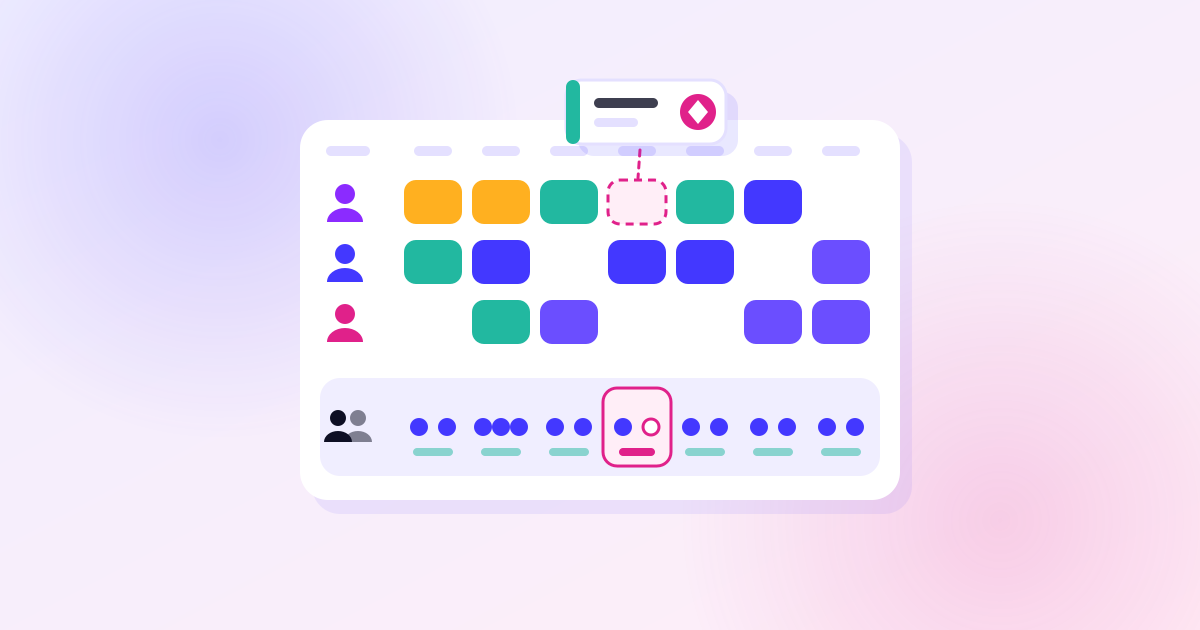
Staffing needs are the target you set for each department: how many people a given shift requires on each weekday, and optionally that one of them must hold a specific skill. They don't block anything by themselves — they're there to show you, and warn you, when the schedule doesn't match what you asked for.
Setting the target
You set staffing needs per department with the "Staffing needs" button on the schedule, and this is available on every plan, not just the higher tiers. For each shift and weekday you enter how many people are needed, and you can optionally require that one of them has a particular skill — for example, at least one key holder on the closing shift every day.
Each department keeps its own numbers, which matters as soon as you run more than one department: a cafe counter and a kitchen can have completely different headcount needs for the same time slot, and setting them separately is the point.
A few things to keep in mind when you set these:
- Only people who will actually be on the shift count toward the number. An open shift counts as nobody yet, and so does someone whose time off has been approved for that day.
- The target is a comparison, not a gate. You can still publish a schedule that's short-staffed; helloswap will just flag it rather than stop you.
- If you use Auto-fill week (Growth plan and up), ticking "Save these numbers as staffing needs" when you run it writes the numbers you just entered into the department's staffing needs, so they're already filled in next time. Untick it for a one-off, unusual week so your normal numbers aren't overwritten.
Reading the Staffing row
Once staffing needs are set, a Staffing row appears under each department on the schedule, comparing people scheduled against people needed for every day. It's color-coded:
- Green — the day's requirement is met.
- Amber — a shift is short, is missing someone with the required skill, or both.
- Grey — more people are scheduled than the need calls for.
This is the fastest way to scan a week and spot the days that need attention, including a draft before you publish it, especially useful right after a big schedule change or an import. The same shortfall also surfaces on Approvals: if approving a swap or a time-off request would leave a shift short, you'll see the warning there too, before you confirm it.
Setting up skills
Skills live on the person, not the shift template. Open a person's profile from People or the team roster and add what they're signed off for — key holder, first aid, bartender, whatever applies in your business. Typing a skill that doesn't exist yet creates it on the spot, so you don't need to set up a skills list in advance.
A company admin or the person's own manager can set someone's skills, which keeps this under the control of whoever actually knows who's qualified for what.
Once a skill exists, you can require it on a shift directly in the shift dialog using "Needs skill." That has a real consequence beyond the Staffing row turning amber: a shift marked this way can only be assigned to, or picked up from the swap board by, someone who actually has the skill. That's worth using deliberately rather than everywhere — mark a shift as needing a skill only when the coverage genuinely depends on it (a certified first-aider on site, a key holder to open or close), not as a general preference, since it narrows who can ever fill or take that shift.
A mistake to avoid
Don't rely on staffing needs to catch every gap automatically — they only compare against the numbers you've entered, so a department with no staffing needs set won't show amber at all, even if it's badly understaffed. Set the numbers for every department you actually want warned about, and revisit them when a department's typical headcount changes, since nothing nudges you to update them on its own.